

Photo Details
More options
 Discuss with Marie
Photo License
Set where and for how long you are allowed to use the photo, and monitor expired licenses.
For each photo, you keep track of the license: on which medium, where, and for how long you may use it. Photos without a valid HeyFriday license count as expired.
Photo License Settings
In the photo detail you will find the License section with three fields:
- Medium — Digital, Print, or Both (digital + print).
- Location — Worldwide, Only CZ, or Only SK.
- Validity — Forever, Until date, For 2 years, For 5 years, For 10 years, or Custom number of years.
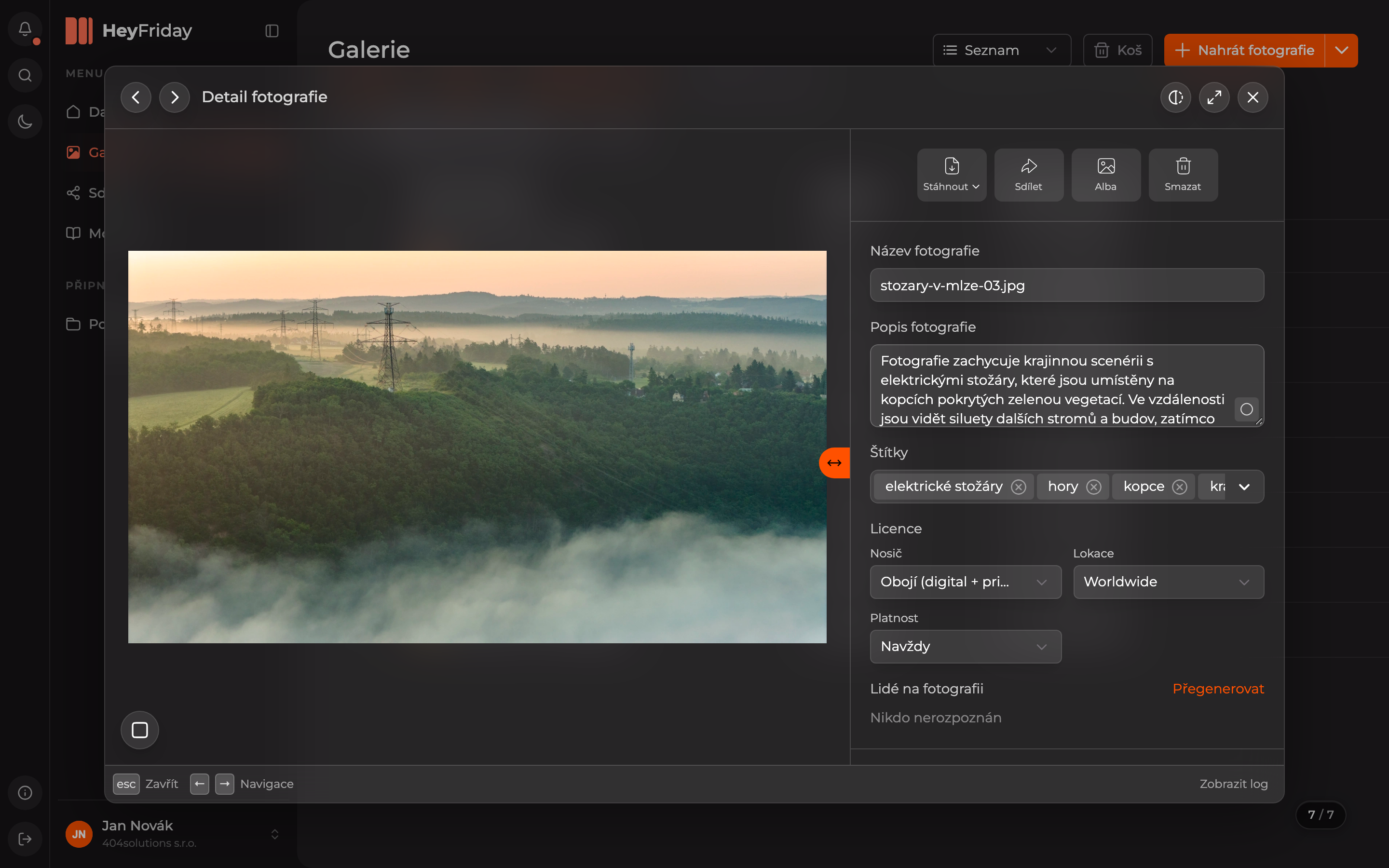
You can also set the license for an entire batch at once when uploading photos.
License Overview
On the dashboard, click the number Expired Licenses. The Licenses page will open with two tabs:
- Expired / No License — photos you are no longer allowed to use or that have no license set.
- Expiring Soon — photos whose licenses will expire soon.
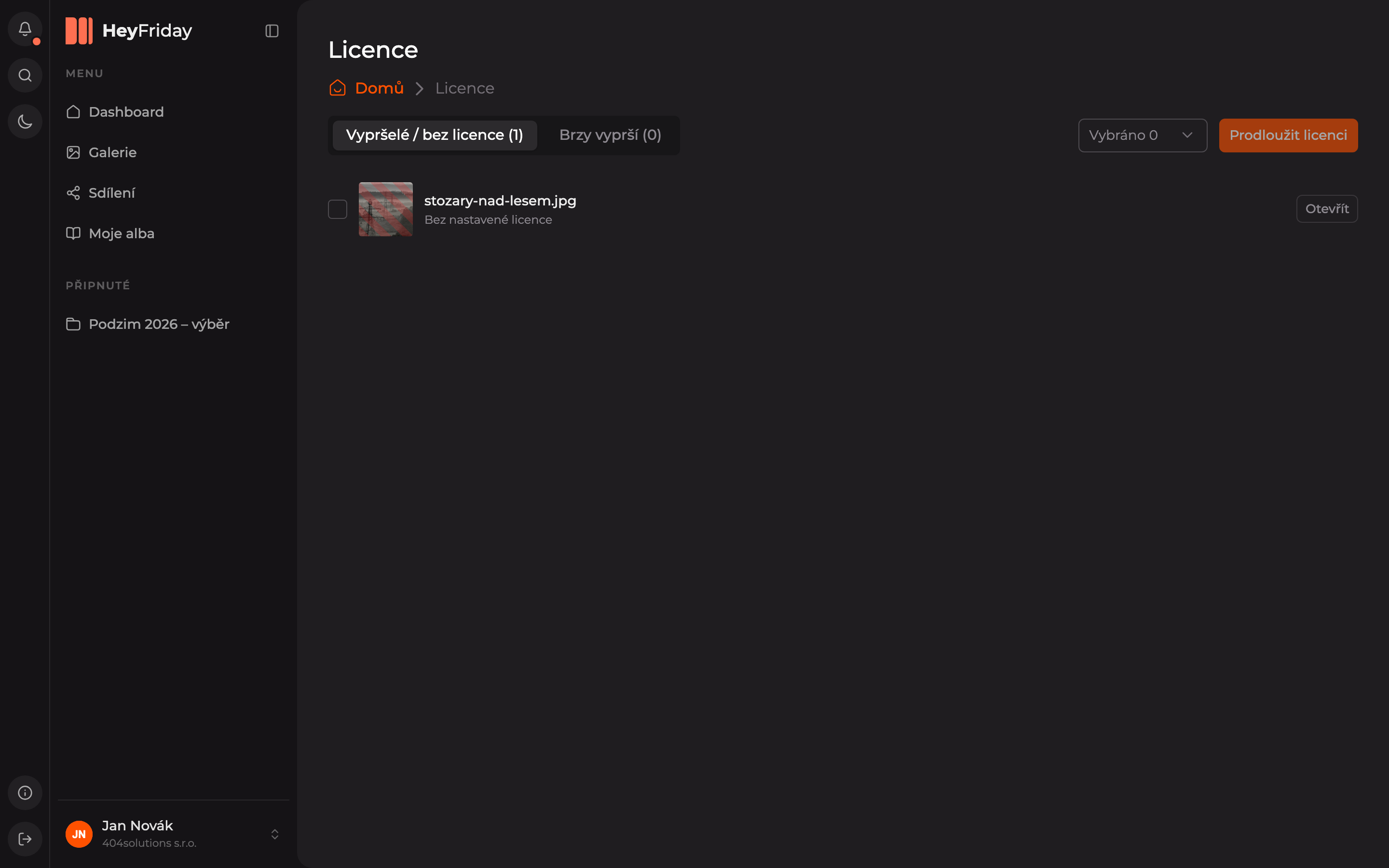
The preview of a photo with an expired license is overlaid with red stripes, and below the name, you see when the license expired or No license set.
License Renewal
You can renew licenses in bulk if your organization administrator has allowed it. Otherwise, you will not see checkboxes and buttons in the list.
Select Photos
- Check the photos for which you want to renew the license. In the Selected menu next to the button, you can select all at once.
- Use the Open button to view the photo detail, where you can edit the license for that photo only.
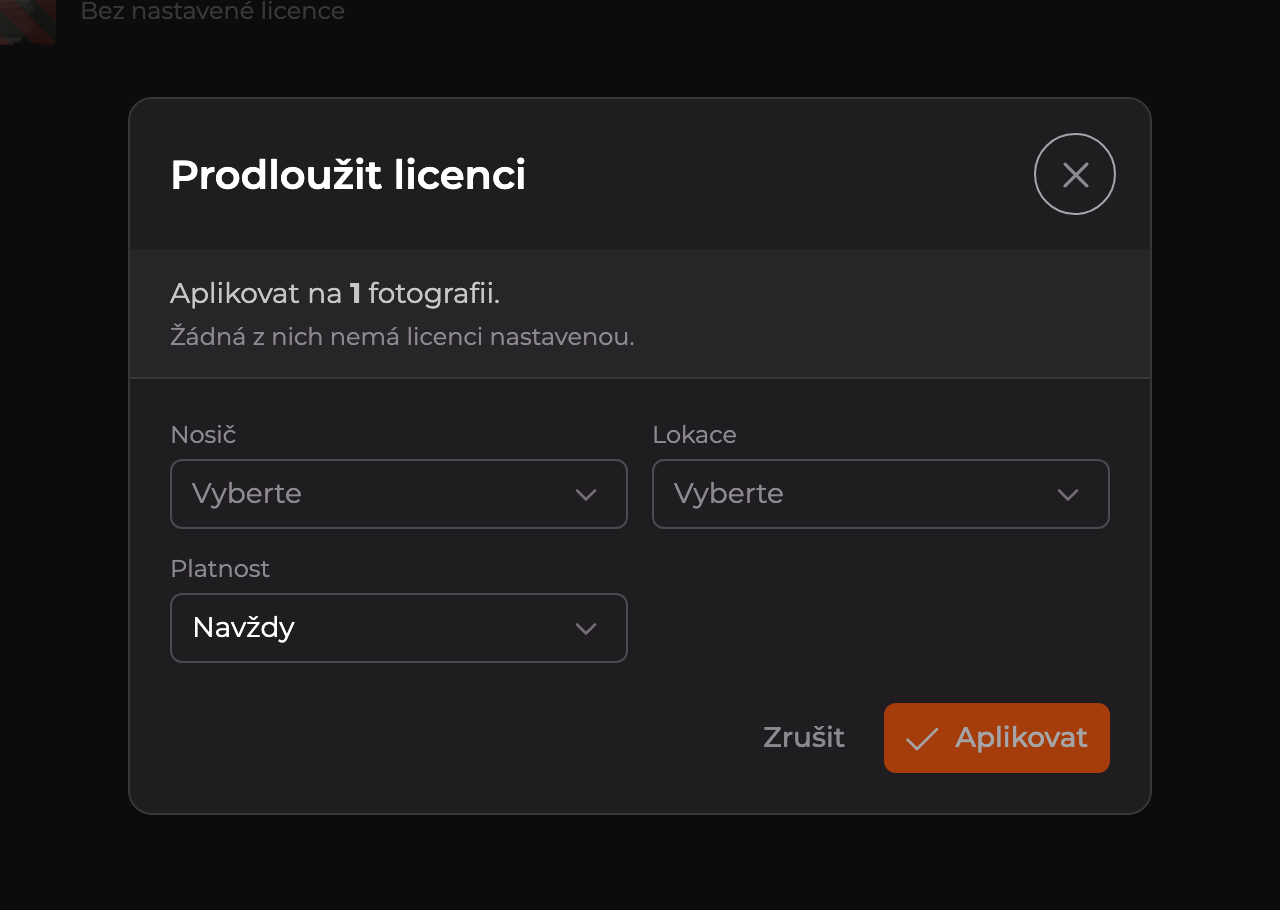
- Click Renew License.
Set the License
In the Renew License window, fill in Medium, Location, and Validity, then click Apply. The photos will then be removed from the expired licenses list.
Updated