

Gallery and Folders
More options
 Discuss with Marie
Browsing the gallery
Open folders, navigate back using the breadcrumb navigation, and switch photo views.
The gallery starts with the root folder of your organization. Inside are folders and photos uploaded by your colleagues.
Open the gallery
In the main menu, click on Gallery.
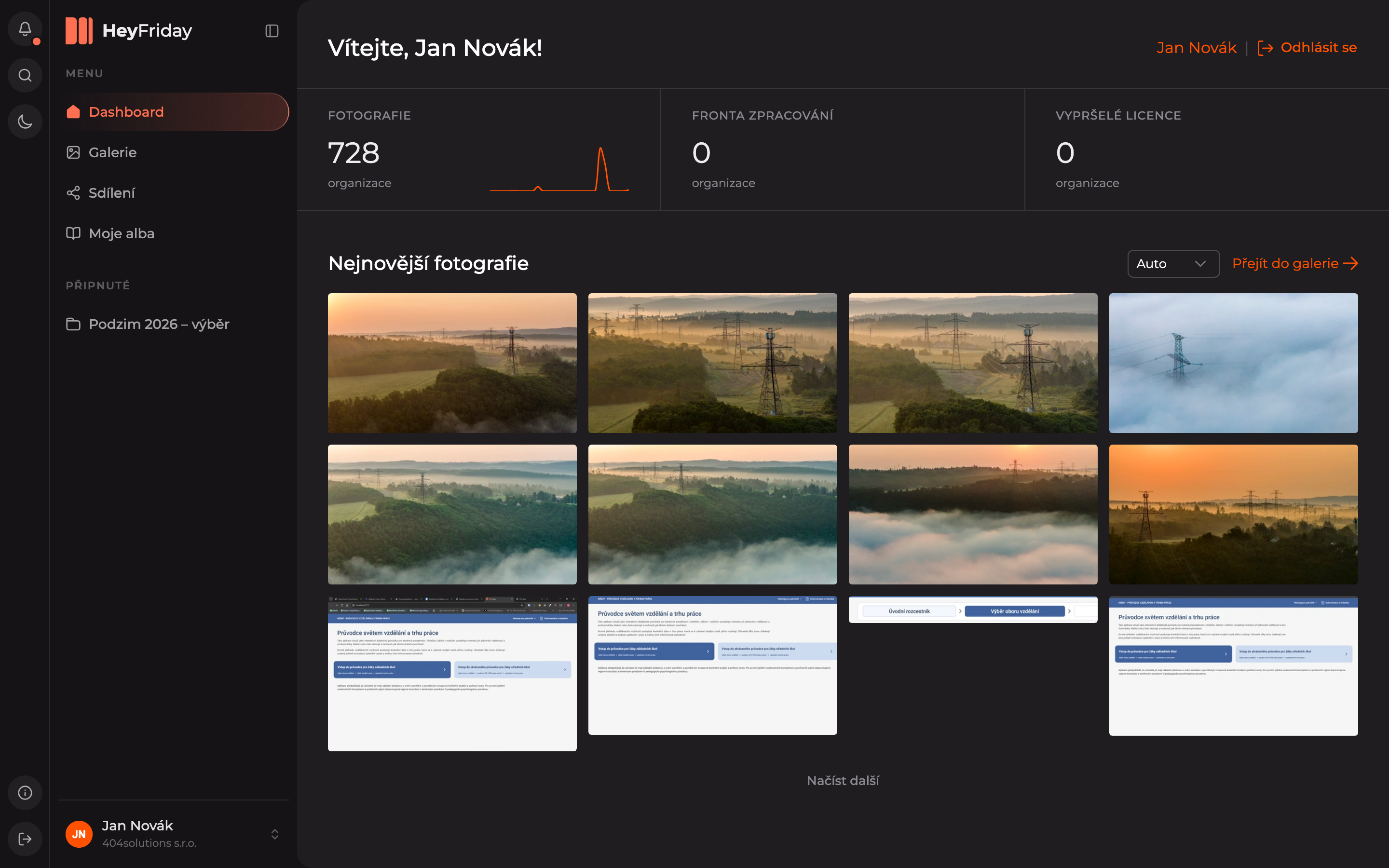
Open a folder
Folders are listed at the top, with photos below them. The number on the folder icon shows how many items it contains. Open a folder by clicking its name.
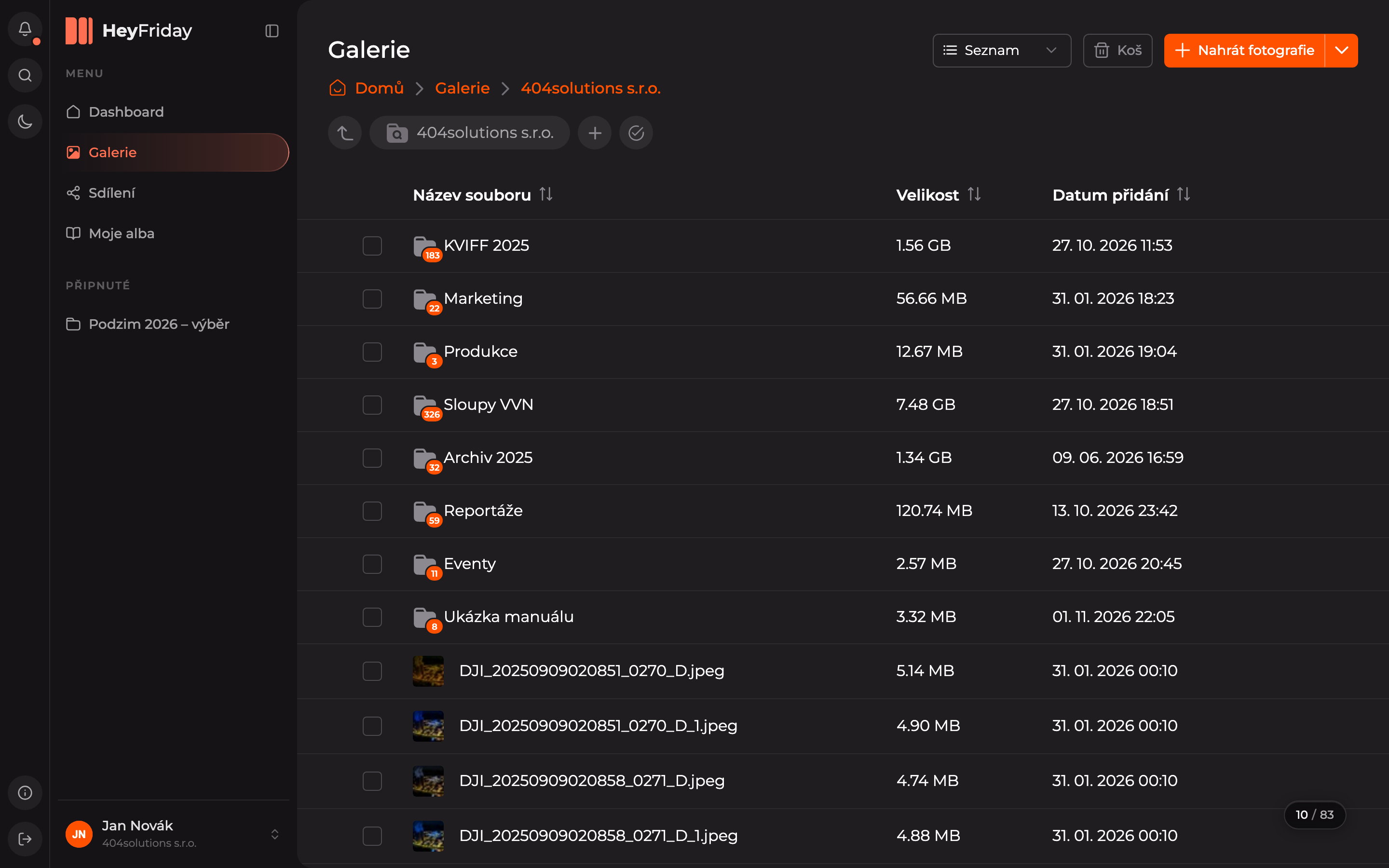
Go up one level
Above the folder contents is the breadcrumb navigation showing the full path to the folder. Click any part of the path to return to it. The left arrow before the current folder name also takes you to the parent folder.
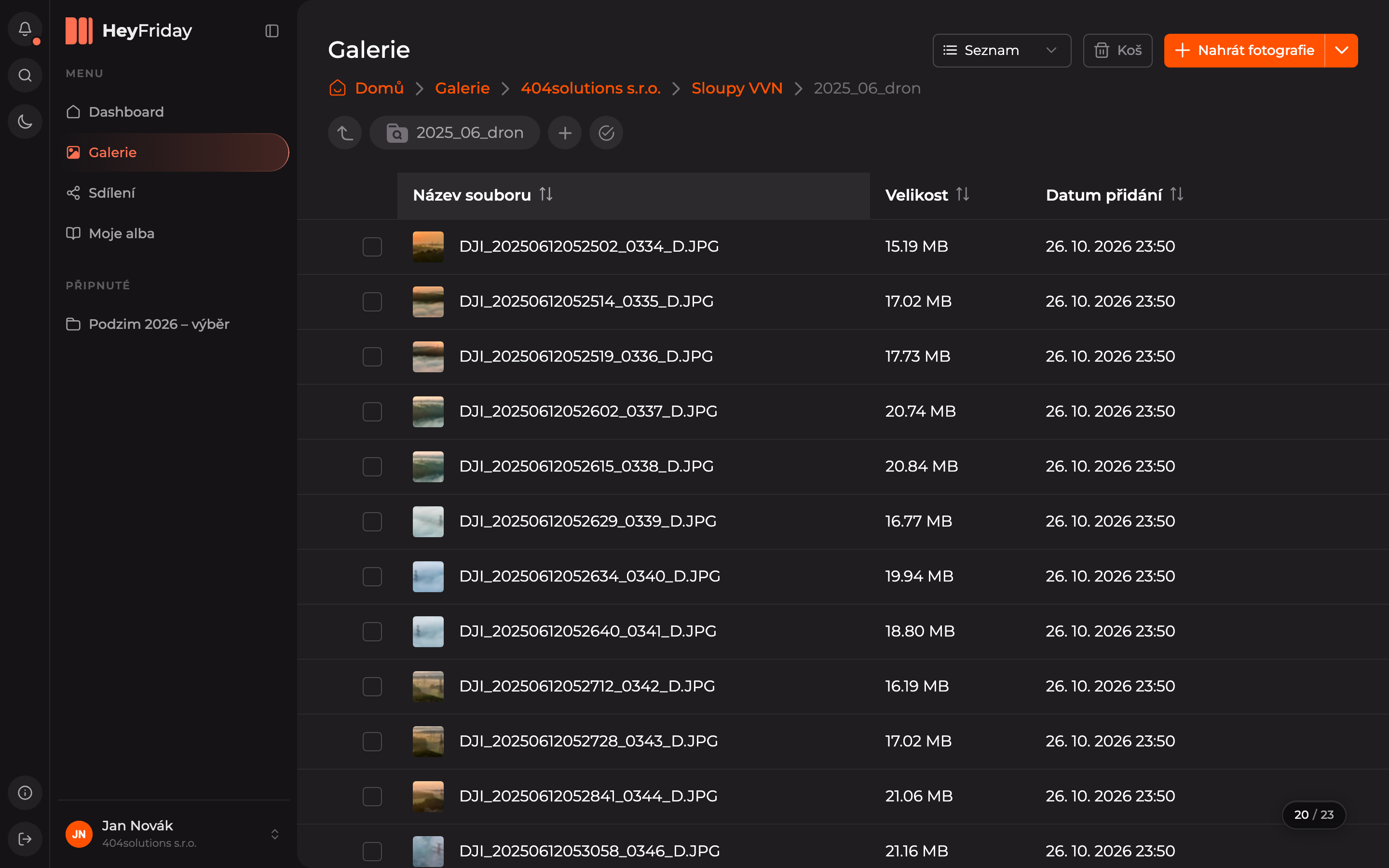
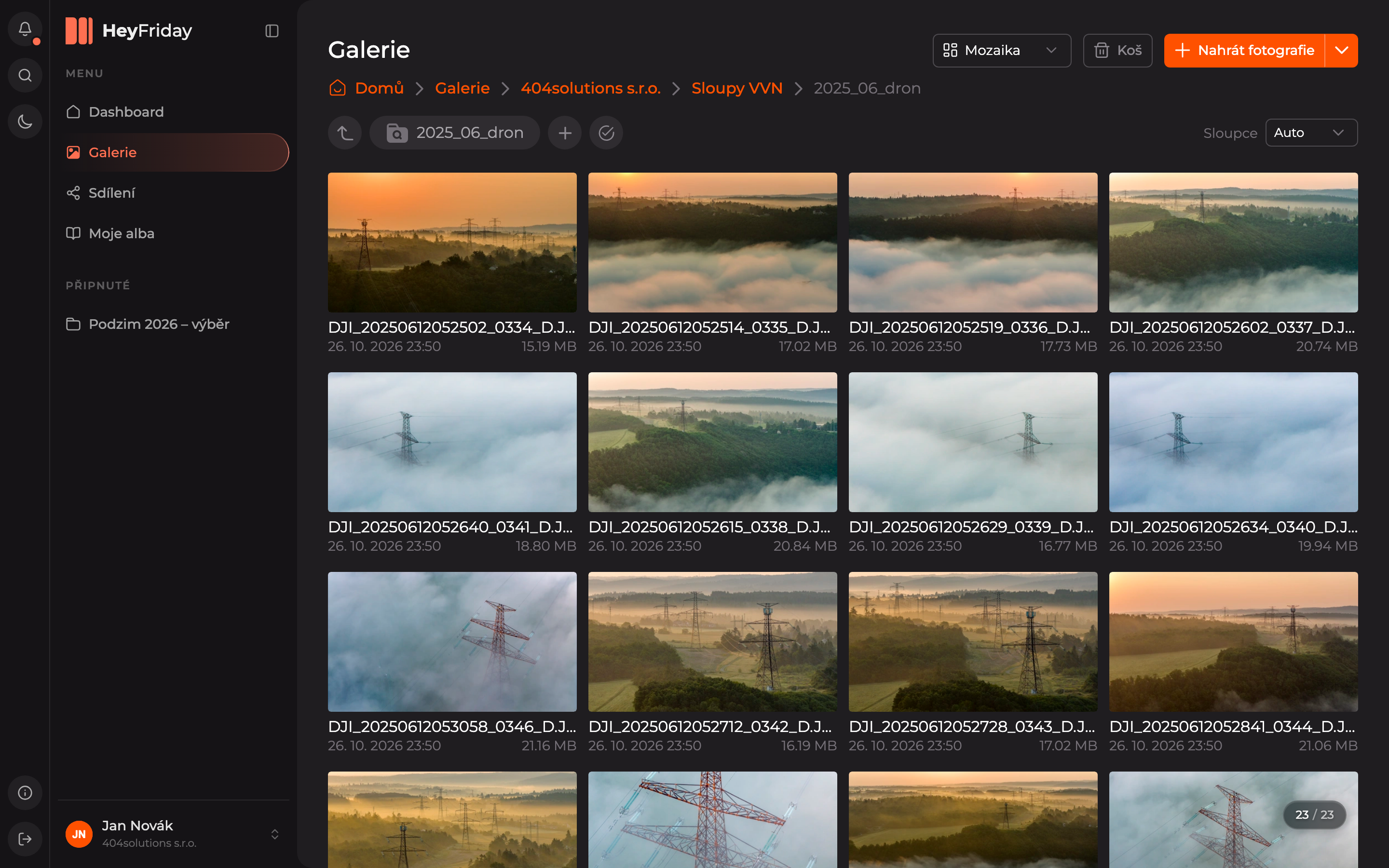
The counter at the bottom right (for example, 10 / 83) shows how many items are loaded out of the total. More will load as you scroll down the list.
Viewing modes
At the top right, choose how the folder contents should be displayed:
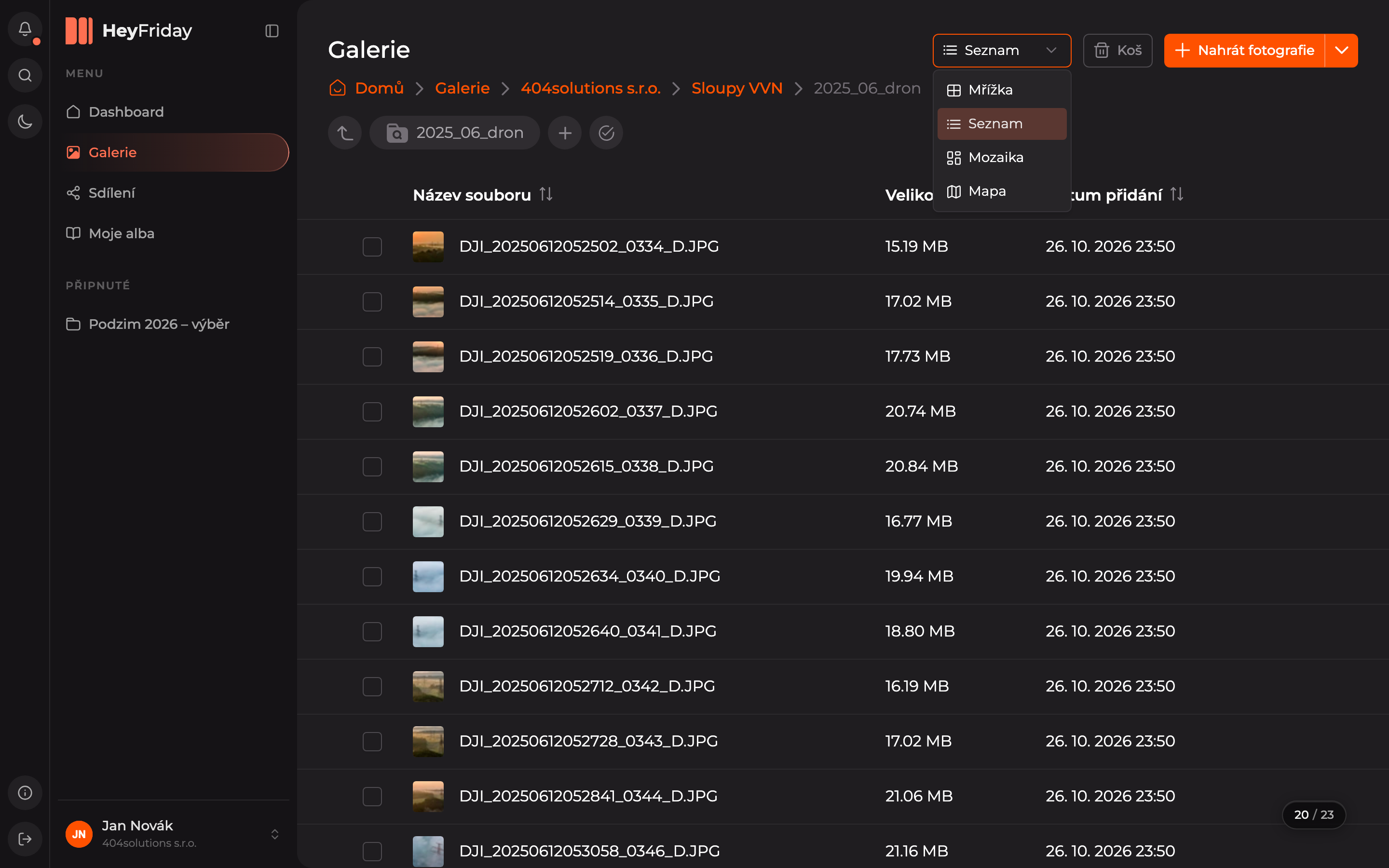
| View | When to use |
|---|---|
| Grid | Photo thumbnails in equally sized tiles. |
| List | Table with name, size, and date added. Sort by clicking the column header. |
| Mosaic | Larger thumbnails with name, date, and size. Number of columns set on the right in the Columns field. |
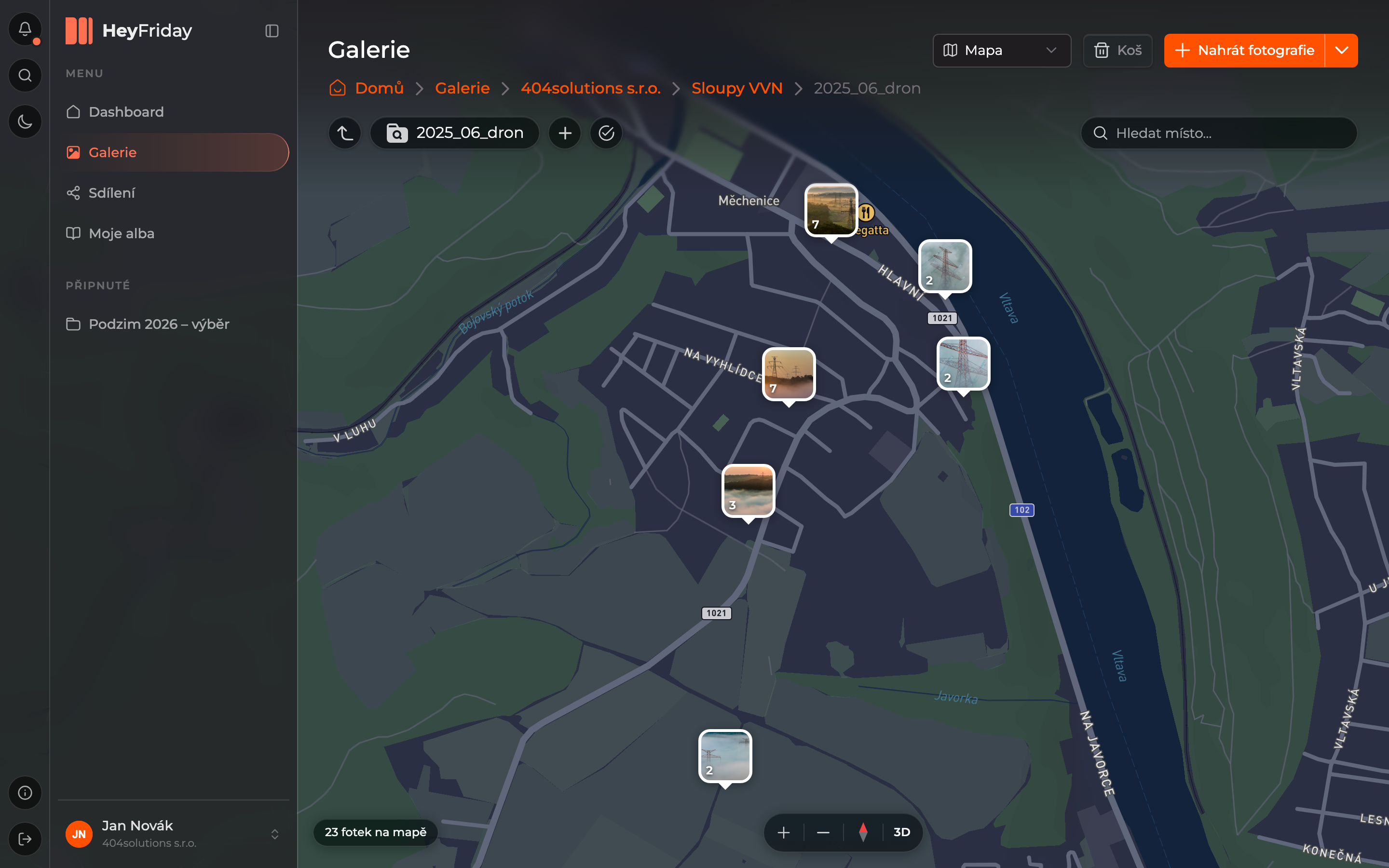
| Map | Photos with GPS location shown as points on a map. |
In Map view, you see where the photos were taken. The number on a thumbnail indicates how many photos are at that location. At the top right you can search for a place, bottom left shows the number of photos on the map, and bottom right has zoom controls and a 3D toggle.
Open a photo by clicking on it, see Photo detail.
Updated