

Photo Details
More options
 Discuss with Marie
Downloading Photos
Download a photo in the required size, or multiple photos and folders at once.
Download a photo in the original size or a smaller size — for example, for the web or a presentation.
Single Photo
Click on the size
Click on the size you need. The download will start immediately.
| Size | Purpose |
|---|---|
| Thumbnail (150×150) | Small preview for lists and galleries. |
| Small (480p – 854×480) | Mobile and web previews. |
| Medium (720p – 1280×720) | Standard web display. |
| Large (1080p – 1920×1080) | Full HD, full screen display. |
| Full (original size) | Full resolution without compression. |
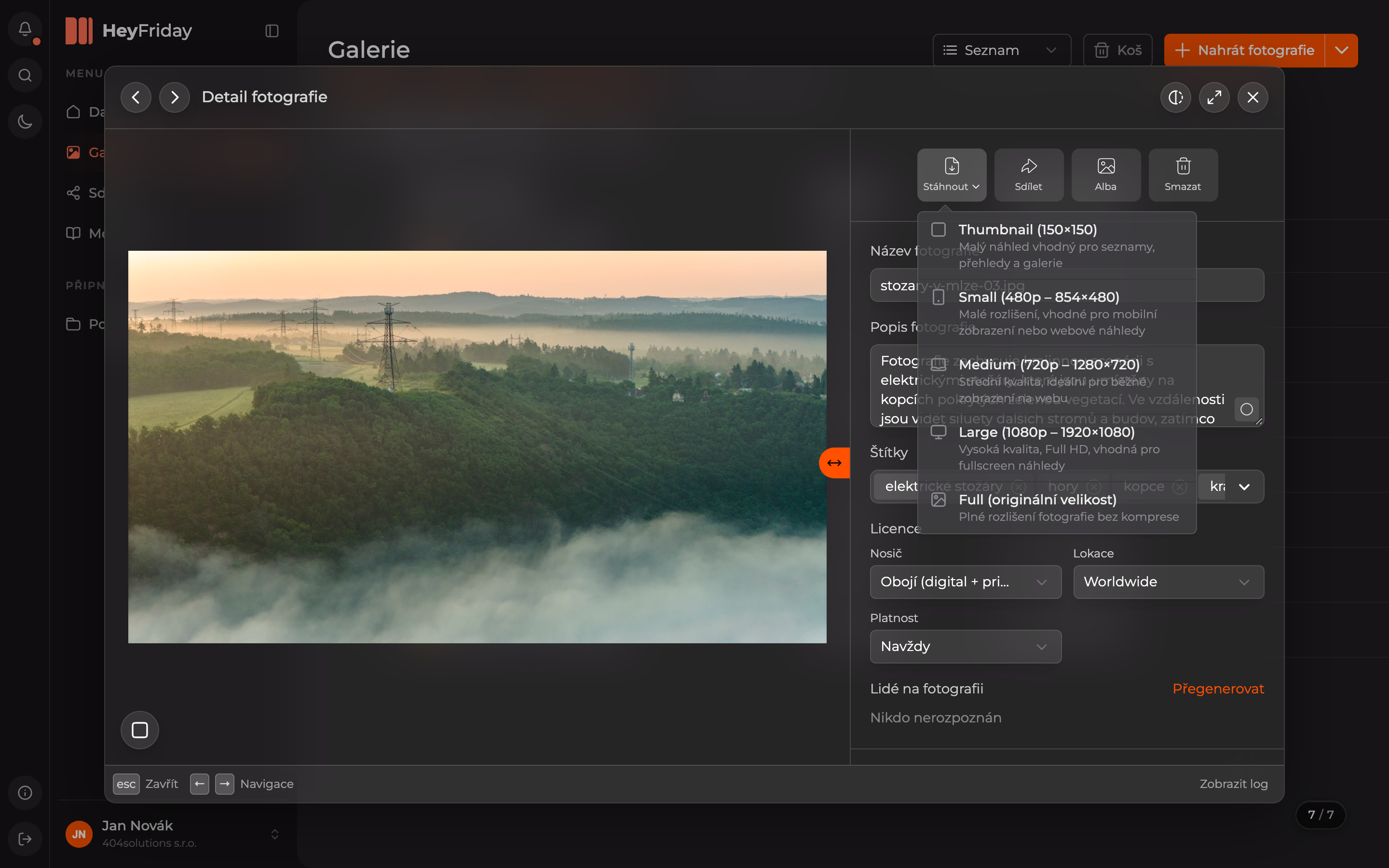
For higher resolution photos, the menu also includes larger sizes, for example 2K (2048×1152).
Multiple Photos or an Entire Folder
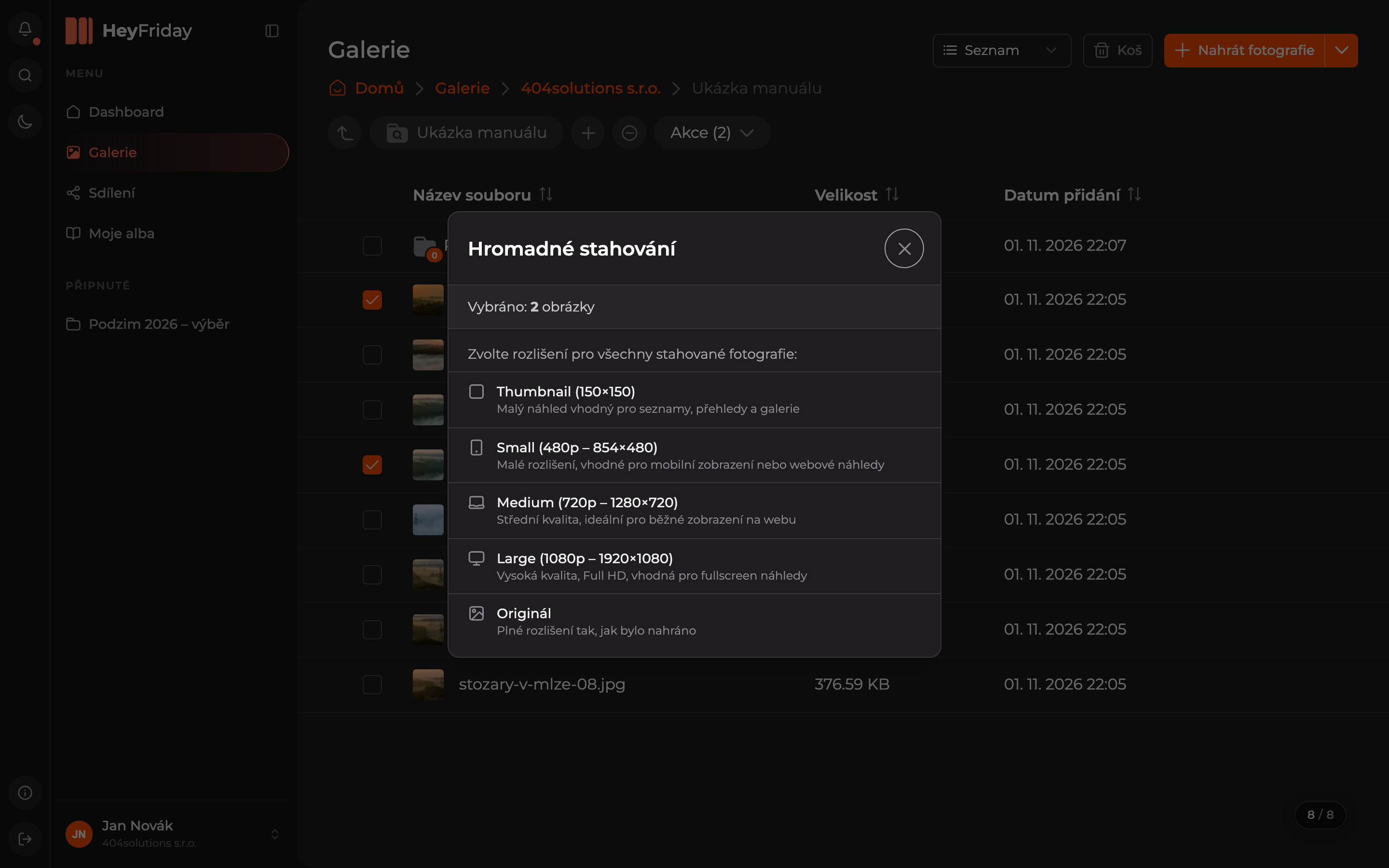
In the gallery, select photos or folders, open the Actions menu, and choose Download. In the Bulk Download dialog, click the resolution for all photos being downloaded — Original is the full resolution as uploaded. HeyFriday will package the photos into a ZIP file which will then be downloaded.
You can select the entire folder content by clicking the checkbox icon next to the + button — the button then shows Actions (All). Details in Selecting multiple items.
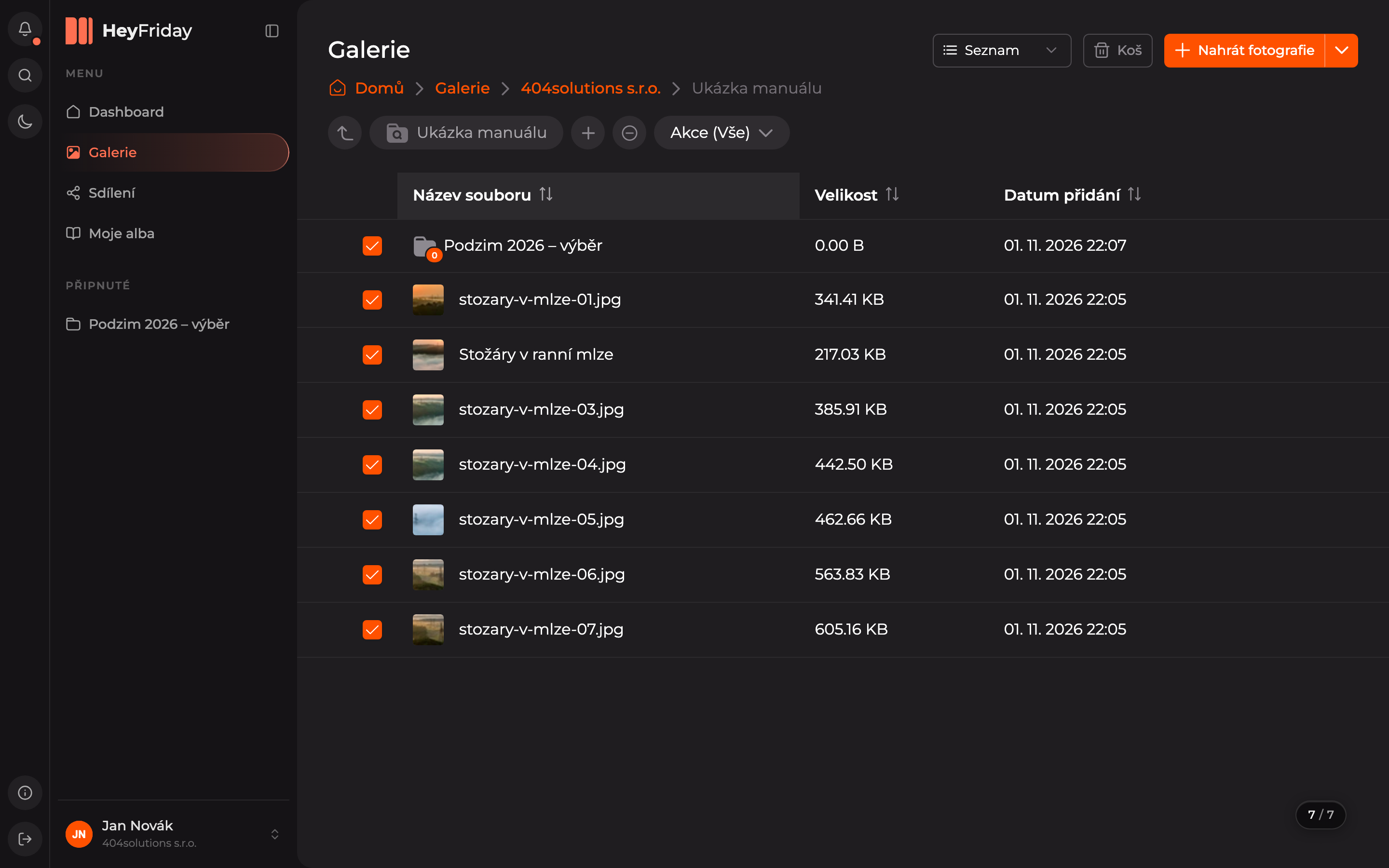
You can also download a single folder from its action menu (three dots) by choosing Download.
Updated