

Photo Details
More options
 Discuss with Marie
People and Metadata
Find out who is in the photo and view technical details from the file.
At the bottom of the photo detail are two sections with data that HeyFriday extracts from the photo itself.
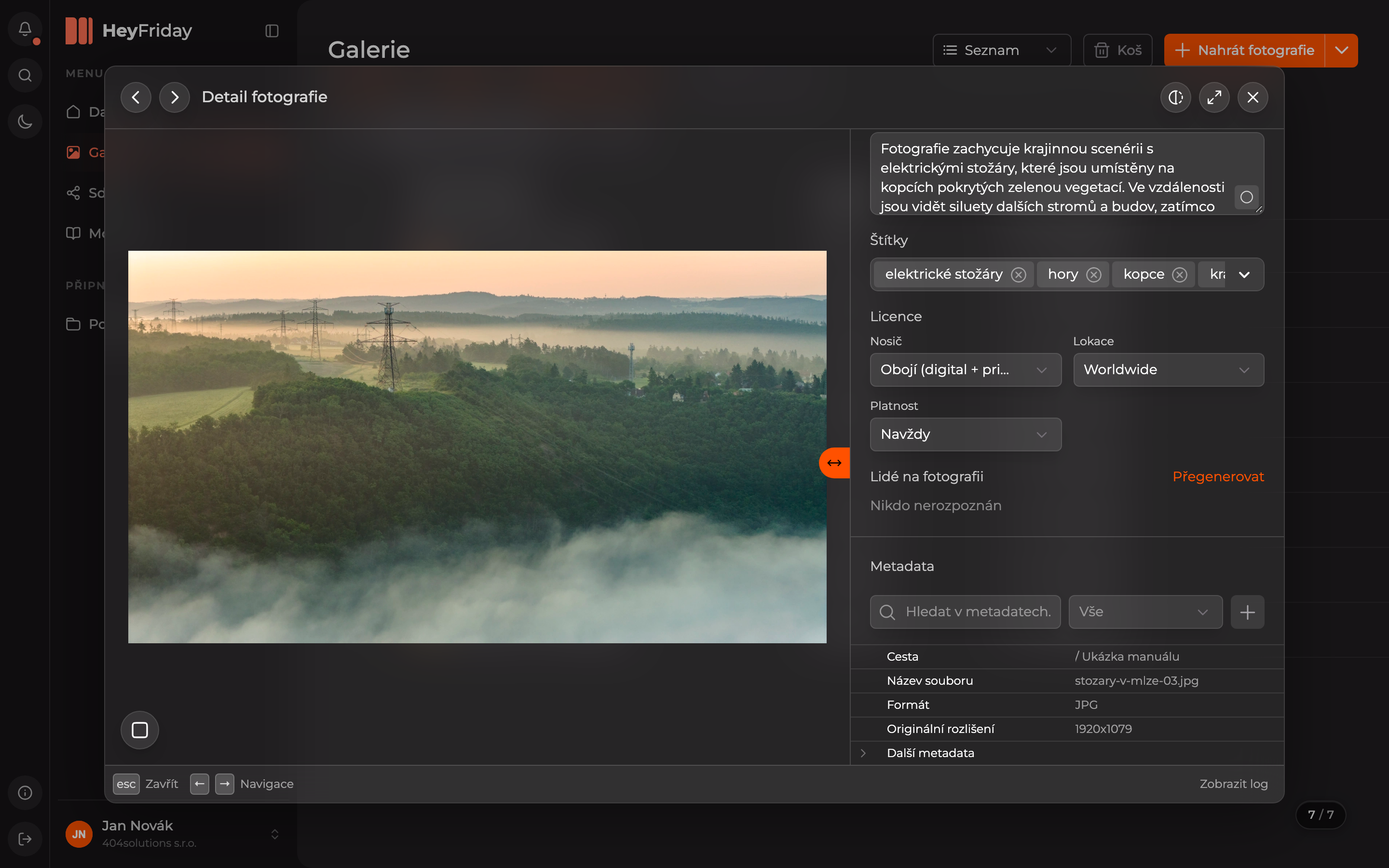
People in the Photo
AI scans the photo for faces and matches them to people it already knows. If no one is found, you will see No one recognized. Click Regenerate to run recognition again.
You can also search photos by people, see the People in the Photo filter in search.
Metadata
The Metadata section shows technical details: Path to the folder, File name, Format, Original resolution, and under the line More metadata everything else the file contains (for example, camera information).
You can find a specific detail by typing into the Search in metadata field. Selecting next to the field (default All) filters to show only metadata from one standard that the file contains.
Custom Data
You can add your own data to a photo, for example, for which customer it was created.
Open the Add Panel
Click the + button next to the Search in metadata field.
Fill in the Data
On the Custom Fields tab, fill in:
- Key — the name of the data, for example
Customer. - Value — its content.
- Click Add.
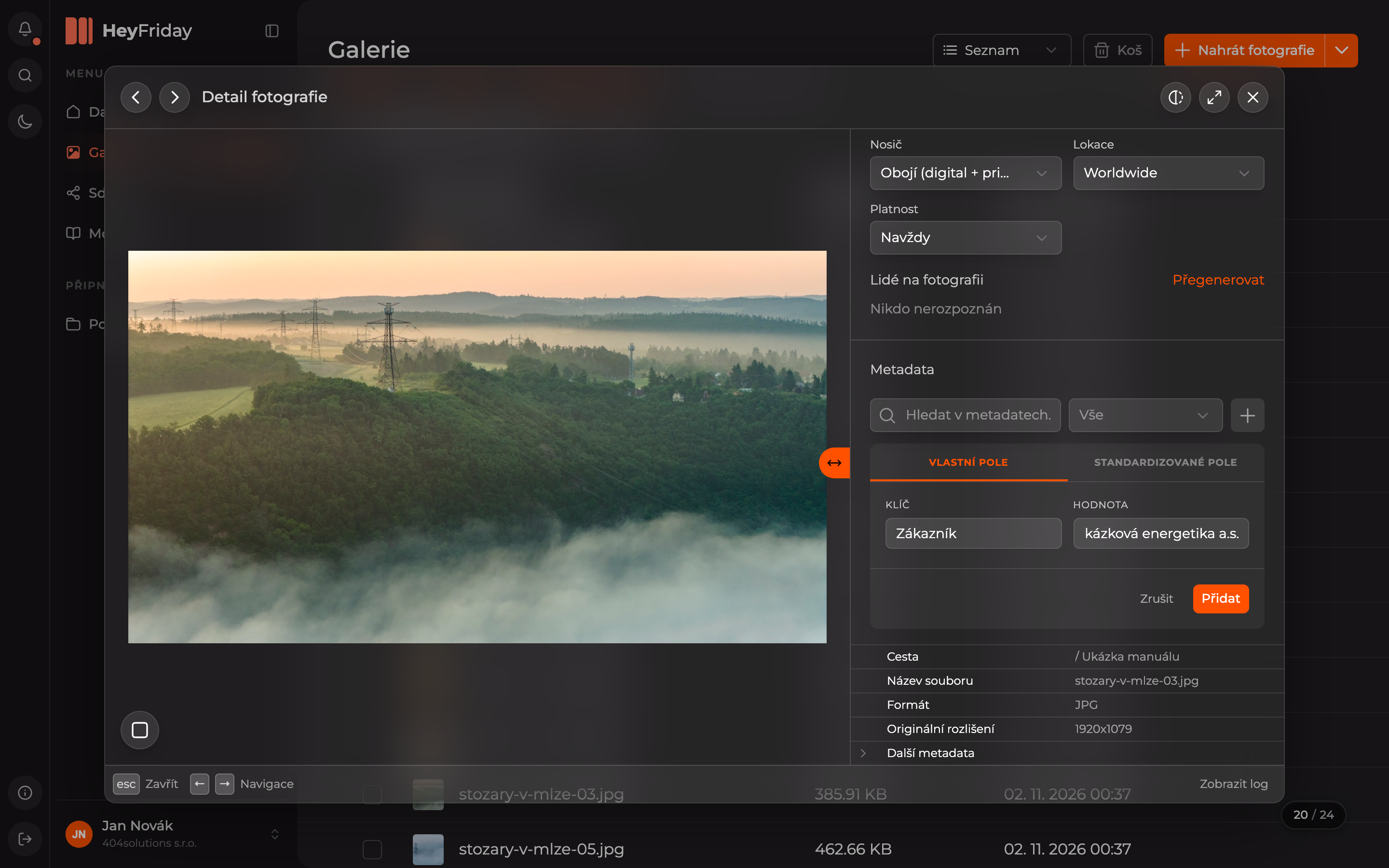
On the Standardized Fields tab, instead of a custom key, select a metadata standard and its tag.
Find the Data
The new data saves automatically and appears under the More metadata line. The fastest way to find it is by typing its key into the Search in metadata field.
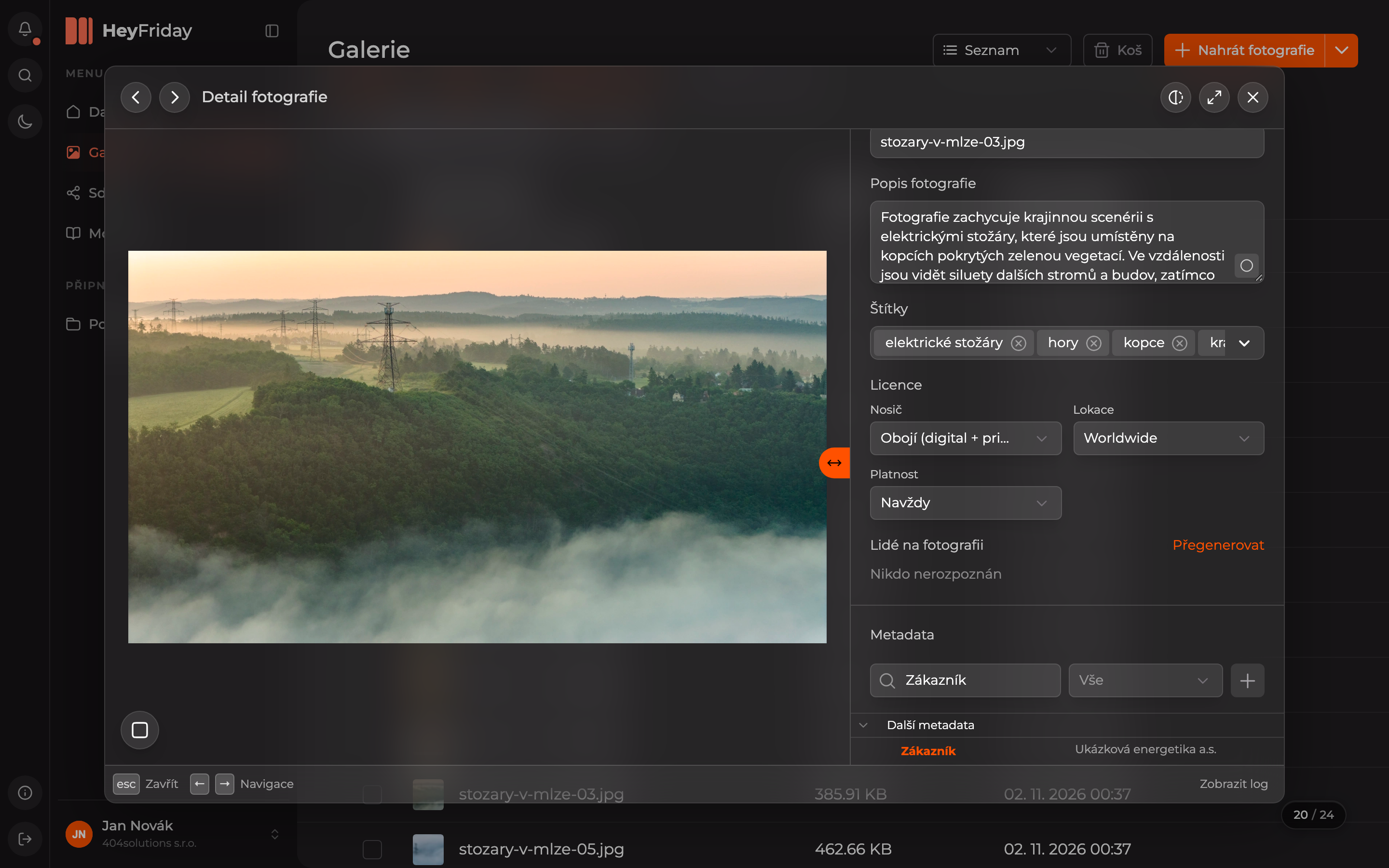
A photo can have the same key only once — if it already exists, the app will notify you.
Updated