

Additional Features
More options
 Discuss with Marie
AI Access
Connect HeyFriday with an AI assistant like Claude, ChatGPT, or Cursor.
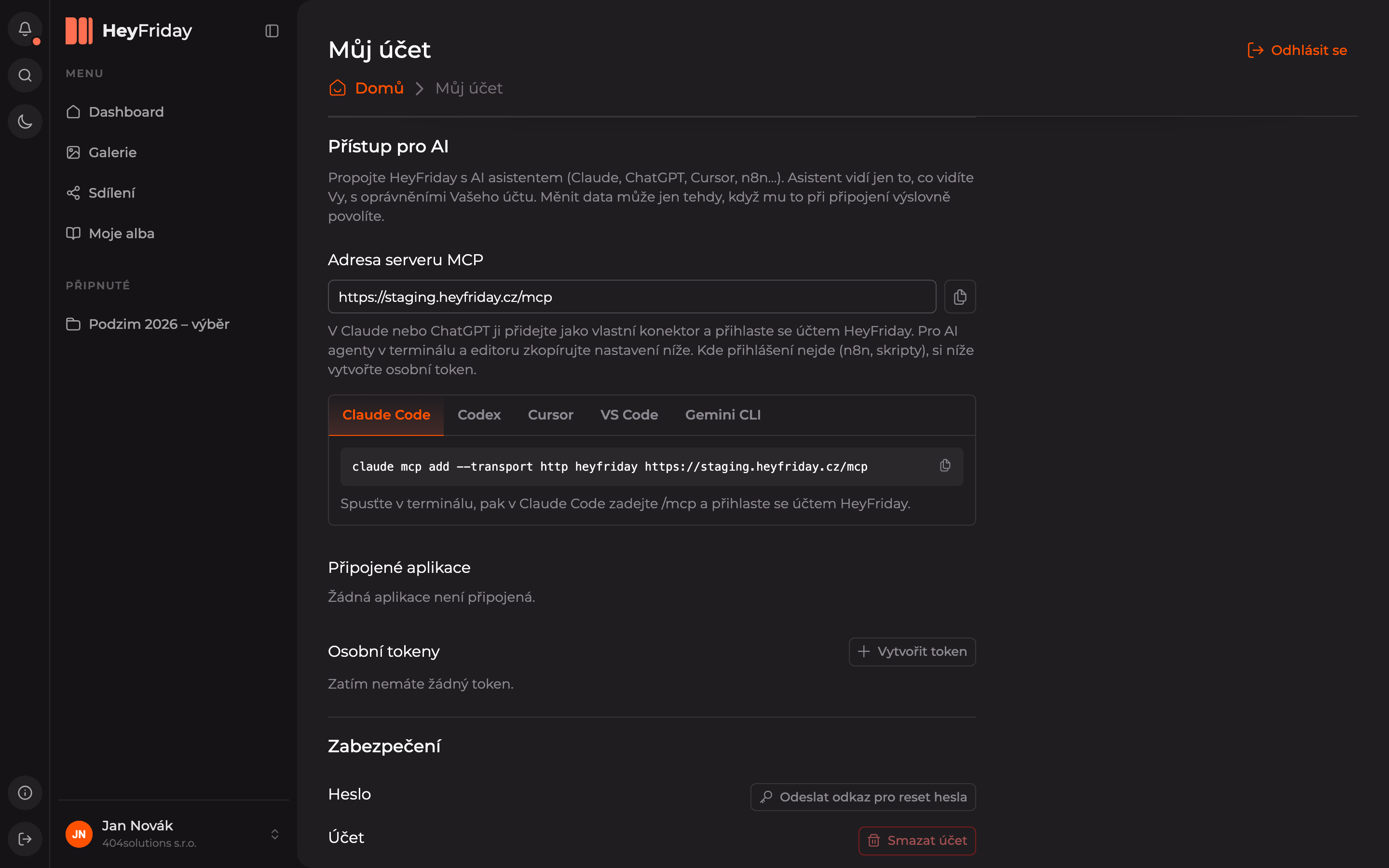
You can connect HeyFriday with your AI assistant. The assistant can then search and sort your photos based on what you tell it. It only sees what you see, with the permissions of your account, and can modify data only if you explicitly allow it when connecting.
You can find the settings on the My Account page under the AI Access section.
Claude or ChatGPT
In Claude or ChatGPT, add a custom connector with the address from the MCP Server Address field (copy it using the icon next to the field) and log in with your HeyFriday account.
AI agents in terminal and editor
For Claude Code, Codex, Cursor, VS Code, and Gemini CLI, the page has ready-made settings. Select the tab for your tool, copy the settings using the icon on the right, and follow the instructions below — for example, with Claude Code, run a command in the terminal, then enter /mcp and log in with your HeyFriday account.
Personal tokens
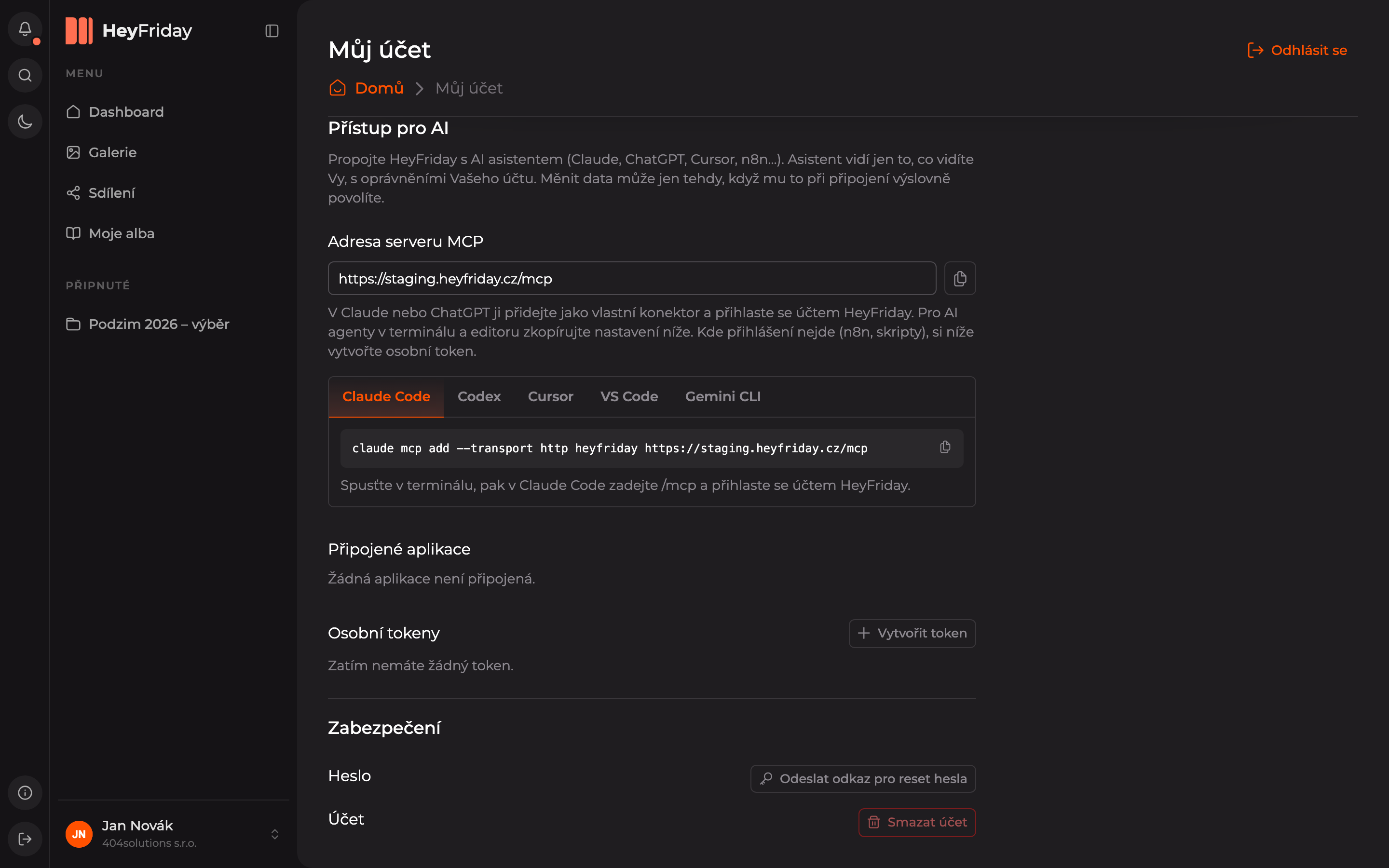
Tools where you cannot log in directly (for example, automation in n8n or custom scripts) connect using a personal token.
Start a new token
In the Personal Tokens section, click Create Token.
Configure the token
- Name — how you will recognize the token later, for example, “Automation in n8n.”
- Validity — how long the token will be active. Shorter validity is safer.
- Allow changes — if unchecked, the tool can only search and read photos. If checked, it can also edit, move, upload, share, and delete to trash. Permanent deletion always requires separate confirmation.
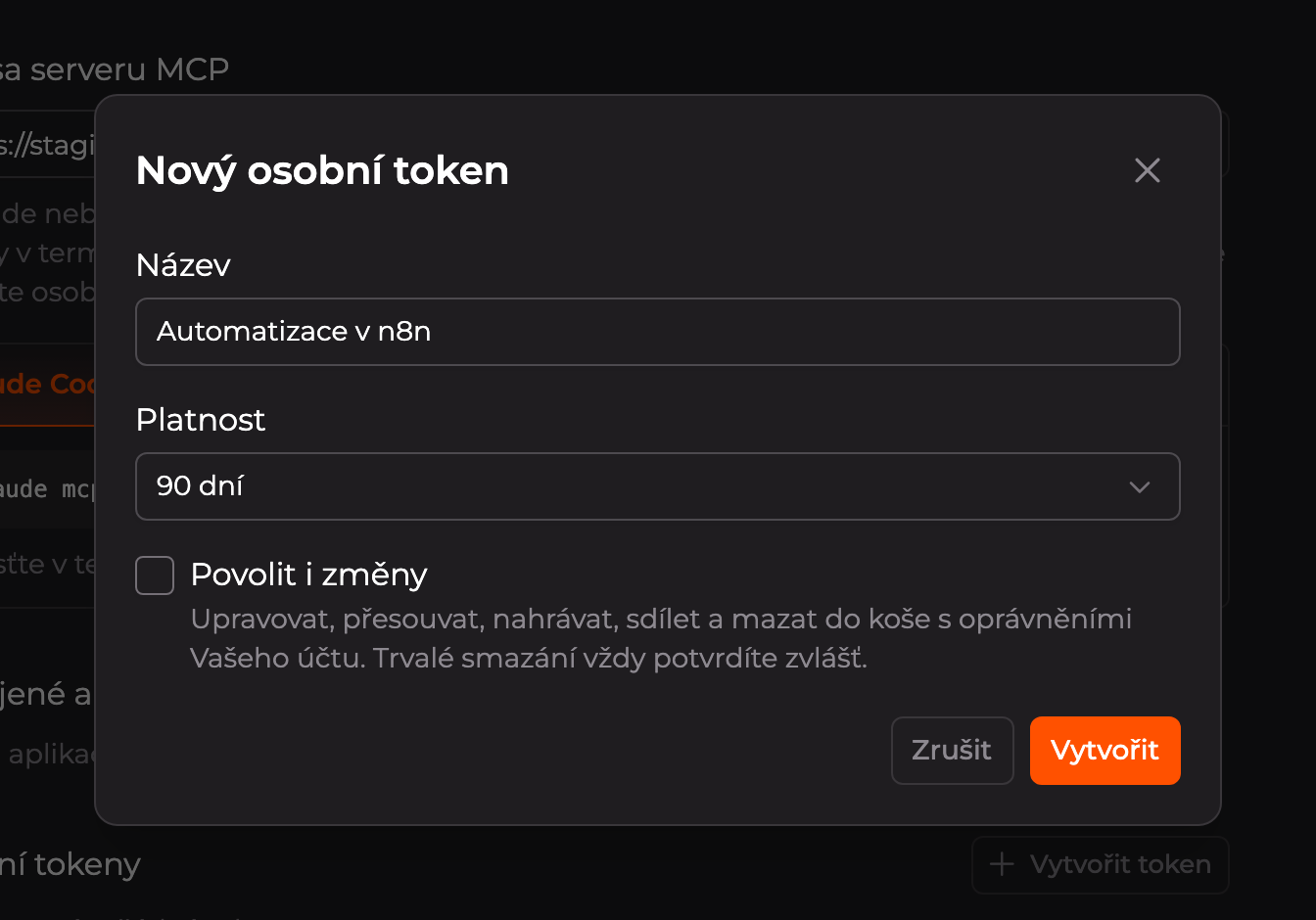
Then click Create.
Copy the token
The token is shown only once. Copy it immediately using the icon next to the field and paste it into the tool that needs it. Below is prepared configuration for individual AI agents including the token. Close the window with the Done button.
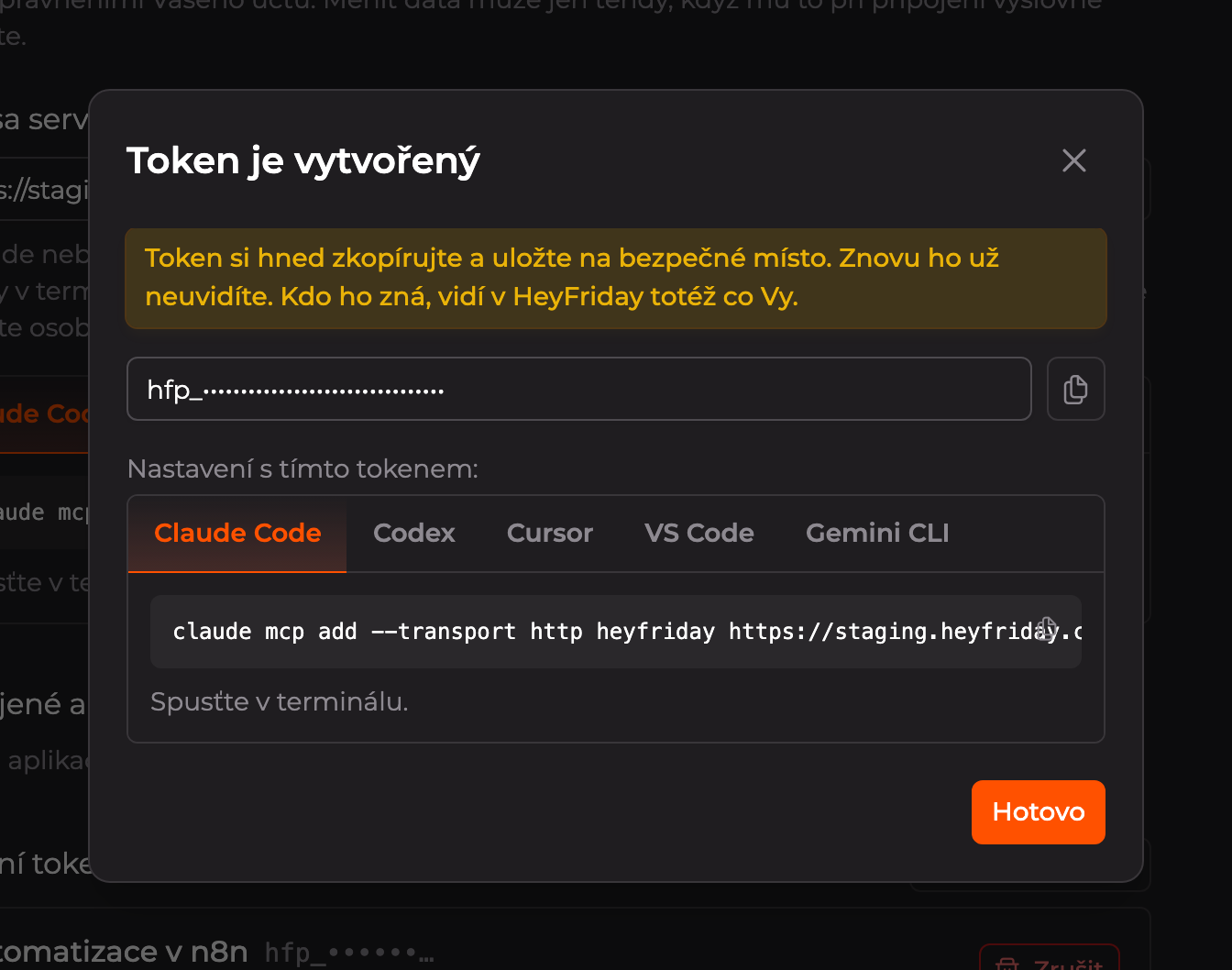
Revoking tokens and disconnecting apps
In the Connected Apps and Personal Tokens sections, you can see what has access to your account, whether it can only read or also modify data, how long it is valid, and when it was last used.
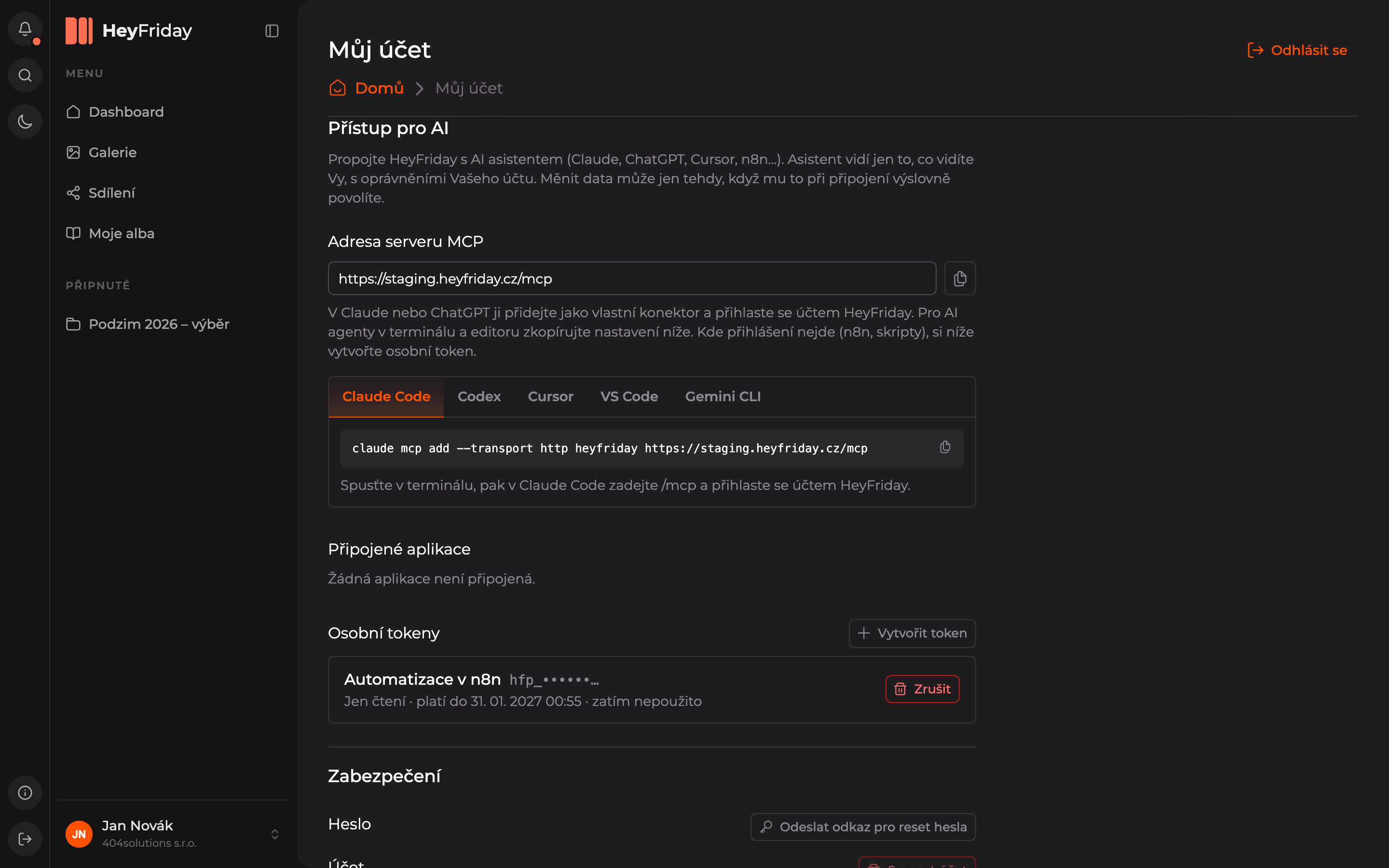
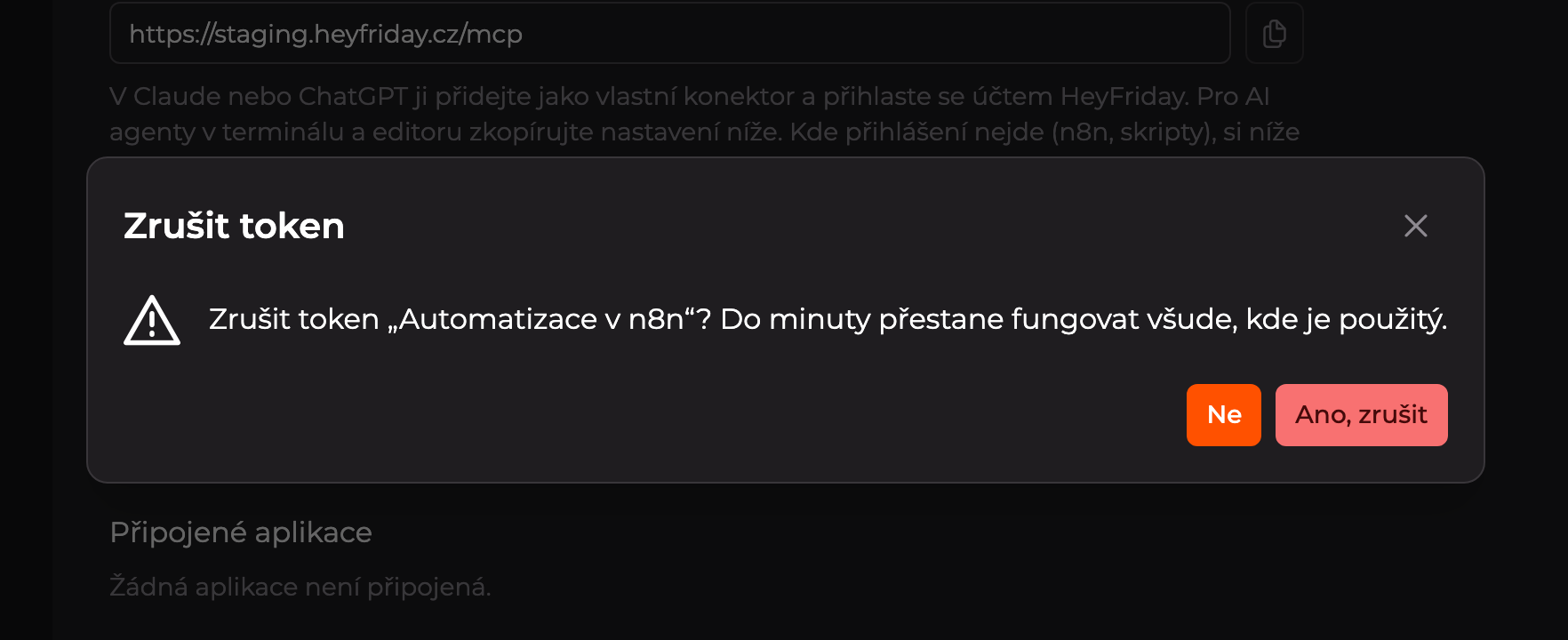
You revoke a token by clicking Revoke and confirming with Yes, revoke. You disconnect a connected app (for example, Claude or ChatGPT) the same way, by clicking Disconnect and confirming with Yes, disconnect. Access will stop working within a minute.
Updated